In today’s rapidly evolving digital landscape, maintaining visibility and control over your organization’s M365 Power Platform environment is crucial. The Center of Excellence (CoE) for the Microsoft 365 Power Platform serves as a vital tool for organizations to monitor, manage, and optimize your Power Platform resources effectively. In this article, we will guide you through the process of setting up the current version of the CoE Core solution using Azure Key Vault for secure and efficient Audit Log access.
By leveraging the CoE, you can ensure governance, compliance, and best practices are upheld across your Power Platform initiatives. It´s a cost-free and robust governance framework for Power Platform environments. These components provide the foundational tools and resources needed to manage and optimize Power Platform assets effectively.
Power Platform documentation
The Power Platform is extensive and versatile. We’ve compiled some important links here to help you navigate and utilize its features effectively.
- Microsoft Power Platform documentation: https://learn.microsoft.com/en-us/power-platform/
- Administer Microsoft Power Platform: https://learn.microsoft.com/en-us/power-platform/admin/admin-documentation
- What’s the role of a Power Platform administrator: https://learn.microsoft.com/en-us/power-platform/admin/overview-role-powerapps-admin
- Currently, we are in 2024 release wave 2. See the news here: https://learn.microsoft.com/en-us/power-platform/release-plan/2024wave2/
Setup the CoE
The address aka.ms/coestarterkit is the starting point for information about the toolkit and setup instructions.
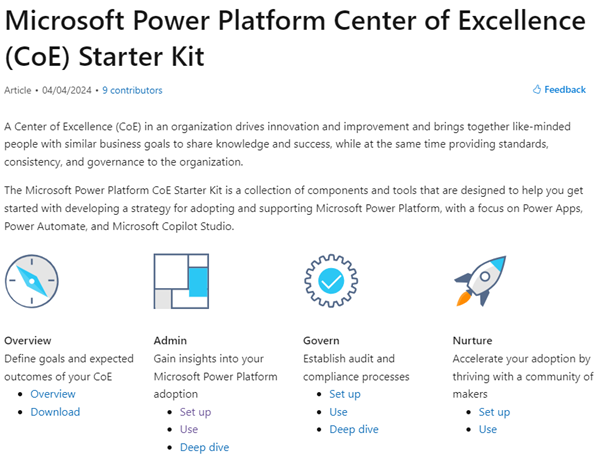
The latest version can be downloaded from aka.ms/coestarterkitdownload. The zip package currently includes CenterofExcellenceCoreComponents_4_43_managed.zip. This core components solution includes the inventory components of the Power Platform which is the first solution that must be installed. You can find a list of all components at Download the solution.
We recommend creating a licensed service user account to install and maintain the CoE, like service.coe@yourorganization.org. You can find the description for doing the CoE setup at Before setting up the CoE Starter Kit.
Audit Log Access with Graph
By accessing the M365 audit log for Power Platform, you gain a comprehensive view of user activities, which helps in understanding how the Power Platform is being utilized across your organization. Insights from the audit log can help in optimizing resources by identifying underutilized apps and flows, allowing for better resource allocation. You can view the collected audit log data and other insights in the Power BI dashboard and in the Power App Power Platform Admin View that come with the CoE Core Components.
The flow Admin | Audit Logs | Sync Audit Logs (V2) can get the audit data. Currently, this is done with Graph Beta (which will be changed in the future), as described at Get auditLogQuery. For that, the app requires the AuditLogsQuery.Read.All permission.
So, we need to create the application as described at Create a Microsoft Entra app registration to connect to Microsoft Graph. The screenshot shows the app permissions.

The audit log data should now be accessed using Microsoft Graph, which is a change from previous versions.
Azure Key Vault
To ensure the security of the application secret required for accessing the audit log, we utilize Azure Key Vault.
Azure Key Vault provides a robust solution for managing secrets, keys, and certificates, ensuring that your sensitive data remains protected while enabling seamless integration with the CoE. Follow along as we outline the steps to configure your CoE Core with Azure Key Vault, empowering your organization to harness the full potential of the Power Platform with confidence and security.
We need to add the roles in the Access control of the key vault using the *Key Vault Secrets ** roles, see also below.

When the RBAC permissions are set, we can add the application secret. Here we name the key “secret” and add the secret itself as value.

Use the Azure Key Vault
To use the Azure Key Vault, follow the steps described at Use environment variables for Azure Key Vault secrets. As described, the Power Platform resource provider must registered and the user who creates the environment variable must have appropriate permissions to the Azure Key Vault resource.

As mentioned above, ensure that the Dataverse App (with App Id 00000007-0000-0000-c000-000000000000**) and your CoE service account (for testing) have the Key Vault Secrets User role assigned, as here.

Testing the access in a sample flow
We find it helpful to follow the recommendation and to create a Power Automate flow to test the environment variable secret to see if the access works properly, as here.

Checking the Key Vault access should return the secret value. In this sample, the outputs are secured in the action, and are working.

Setup the CoE Core solution
When filling out the values, follow the steps described at Set up inventory components and the Set up inventory components list.
The important parts here are to set the Audit Logs – Use Graph API to Yes…

…to leave the Audit Logs – Client Secret empty, and to set the Audit Logs – Client Azure Secret value as below.

The Audit Logs – Client Azure Secret value must be provided in this format. Insert the Subscription, Resource Group, the name of your key vault, and the name of your secret here. (The expression is in one line. The text here is just wrapped for better readability.):
 /subscriptions/*[subscription-id]*/resourceGroups/*[resourcegroup-name]*/
providers/Microsoft.KeyVault/vaults/*[keyvault-name]*/secrets/*[secret-name]*

For example:
/subscriptions/*abc123*/resourceGroups/*RG-COE*/
providers/Microsoft.KeyVault/vaults/*KV-COE*/secrets/*secret
-
Complete all settings as described in the documentation.
When all values are set, continue the installation. The setup can take about half an hour. Use the time for another activity or a break. 
Complete with the Setup wizard app
When the CoE Core setup is done, open the* CoE Setup and Upgrade Wizard* Power App, and complete the setup. This wizard eliminates the need to activate specific flows, as was required in previous versions.

When everything is completed, check if the audit log is filled with the Graph API, your app, and your Azure Key Vault secrets, best in the Power Platform Admin View Power App.
We hope this article helps to use your CoE installation in a secure way!