We are excited to announce an important update to our SaaS solution, Governance Toolkit 365 (GT365). To enhance security and streamline data access, we have replaced the Power BI data refresh authentication method with the Power BI built-in Admin API permissions. This change will take effect on February 21st, 2025. To ensure uninterrupted access to your Power BI data, it is crucial that you update your Microsoft 365 tenant configuration as described here.
Why This Change?
Previously, we had to use a workaround for reading Power BI data, which sometimes did not provide all the data. The new method leverages Power BI’s built-in Admin API permissions, providing a more secure and efficient way to access data. This update aligns with best practices for data governance and security. Furthermore, this method allows the reading of extensive data.
Please complete these changes as soon as possible to avoid any disruption in your data access. Starting from this date, GT365 will use the new authentication, which you must allow in your Power BI admin center to read data from the Power BI service.
Instructions
To continue receiving data from the Power BI API in GT365, please follow these steps as an administrator of your M365 tenant:
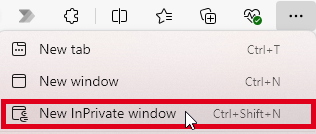
- Open a browser in In-Private mode and sign-in as a global administrator.
- Create a new Security Group (or use an existing security group): Open the Azure portal, and navigate to Entra ID, or follow this link: Microsoft Azure - Groups.
- Create a new security group: Click on the Add icon, and select Group. In this sample, we name the security group “GT365-PowerBI-Admins”.
- Add a member: Click on the link No members selected. In the panel Add members, select the tab Enterprise applications, and search for the “Governance Toolkit 365” app, as shown below.
- Select the GT365 app: Select the “Governance Toolkit 365” app with Id “f6108159-1168-475d-b3ca-be8104781bf8”, and click Select, as shown here.
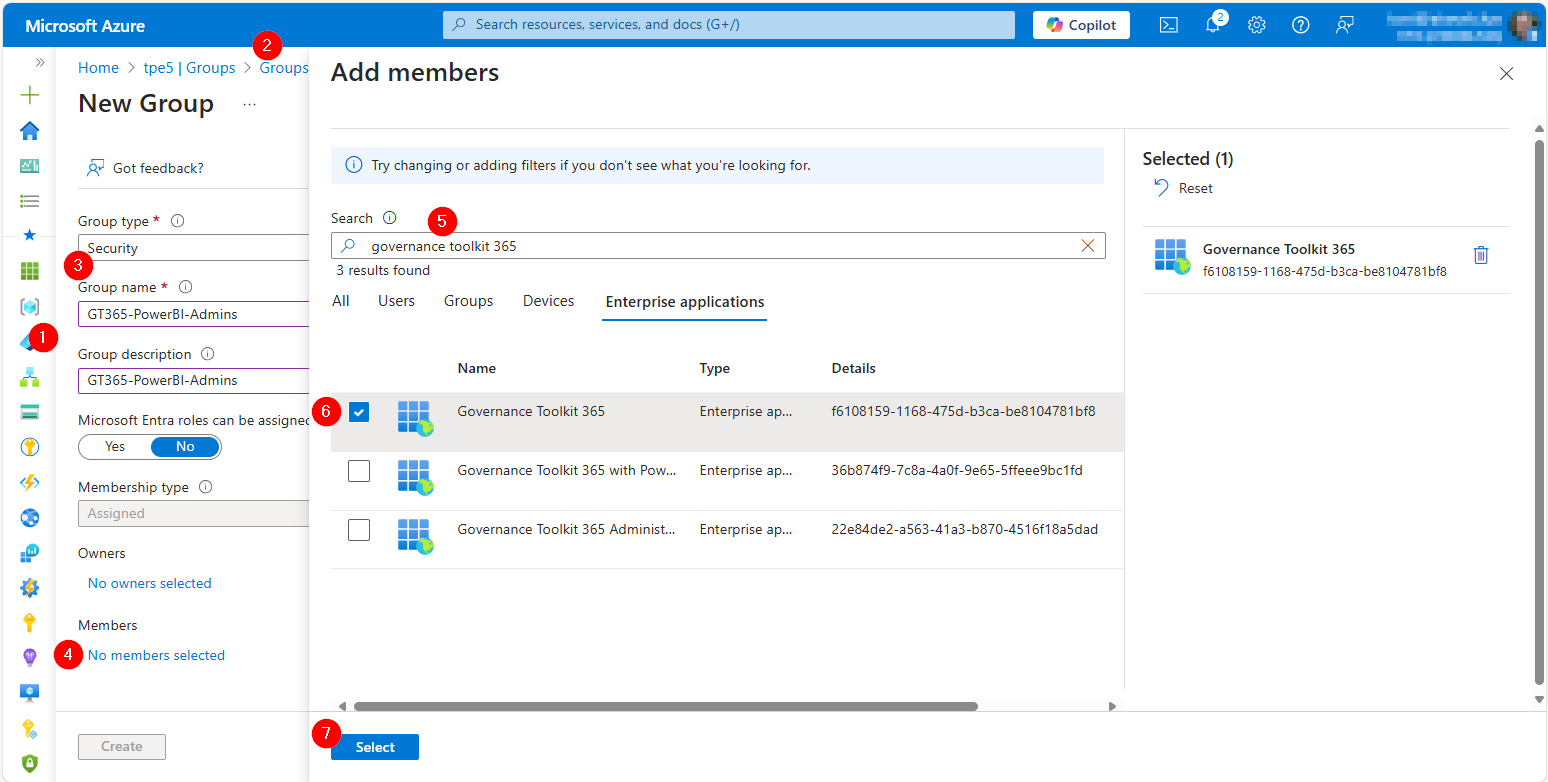
- Add owner: Add yourself as an owner to the group. Click on the Create button to create the security group.
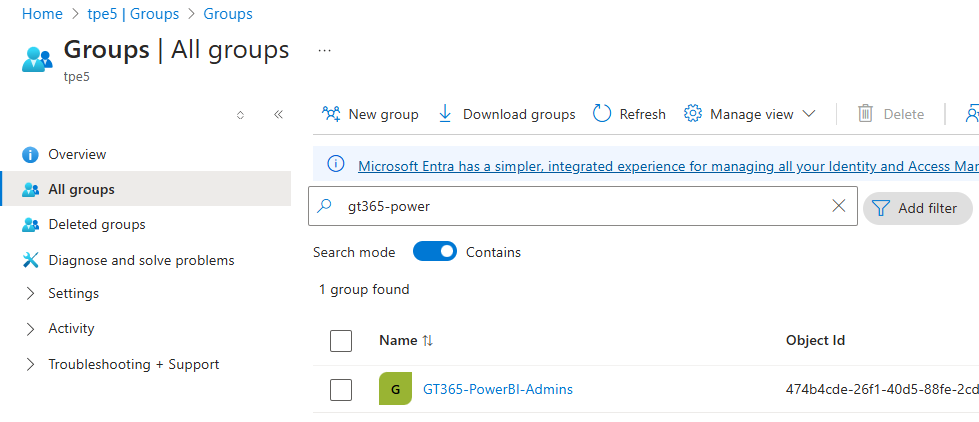
- Check the group: To check the new group, click Refresh. You should see the newly created group.
- Open the Power BI admin portal: We´re done in Azure portal. Now open the Power BI Admin portal at Microsoft Fabric Admin portal.
- Navigate to the Tenant settings: Open the Tenant settings section, and scroll down to the Admin API settings section.
- Enable the Admin API settings: Open the Service principals can access read-only admin APIs section, and set the Enabled switch to ON. Then, select your (new) security group “GT365-PowerBI-Admins”.
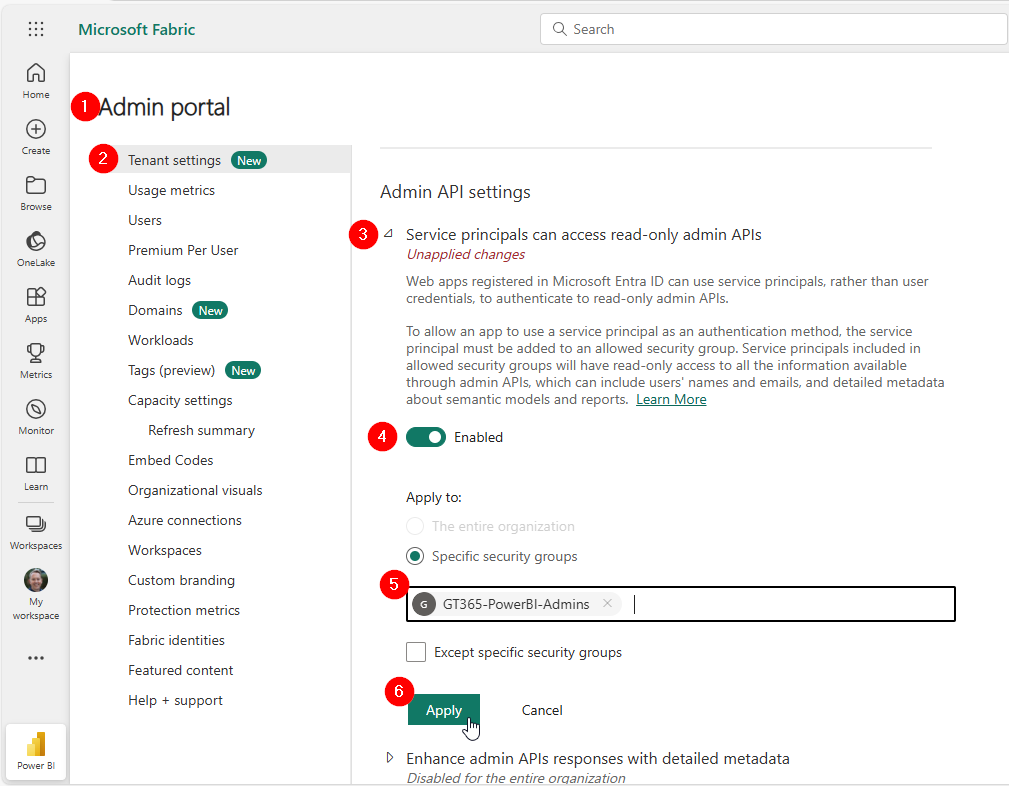
- When done, click Apply. Please note that this setting may take a few minutes to take effect, but this will not affect GT365 as it updates the data at night.
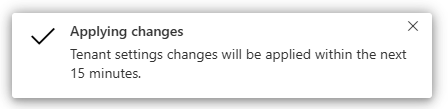





We’re done! The GT365 application receives read-only access to Power BI settings through its membership in the configured security group. GT365 will use this access method to collect and deliver Power BI data starting from the date shown above.
Thank You!
Please make these changes as soon as possible to get data from Power BI in your GT365 reports. We appreciate your prompt attention to this matter.
If your Power BI data is missing, please follow these steps above. If everything worked with the new configuration, you will see your Power BI data as usual. See all required steps for performing the setup at Grant permissions to the GT365 app.
If you have any questions or need assistance, please do not hesitate to contact our support team.
Thank you for your continued trust in Governance Toolkit 365!
Note: We have added additional solutions like Sensitivity Labels support, Power Platform Environment Costs reports, and M365 Copilot Usage reports to the GT365 admin portal. Check them out!