Organizations increasingly need to connect Microsoft 365 administration activities with downstream systems, monitoring platforms, automation workflows, and business processes. Azure Event Grid provides a scalable event-routing service that enables real-time delivery of events to a wide range of Azure services and custom applications.
With Delegate365 Event Grid integration, you can automatically send audit logs and operational events from Delegate365 to Azure Event Grid. From there, events can be routed to Azure Storage Queues, Azure Functions, Logic Apps, Service Bus, third-party SIEM systems, monitoring platforms, or custom applications.
This article walks through the complete configuration process: creating an Event Grid Topic, configuring a test subscription with an Azure Storage Queue, connecting Delegate365 to the Event Grid endpoint, and validating that events are successfully delivered. Once configured, Delegate365 can become an event source for your organization’s automation and integration scenarios.
To configure the event grid system with Delegate365, follow these steps:
Create the Event Grid Resource
- Sign in to your Azure portal
- Create a new Resource Group (or use an existing Resource Group)
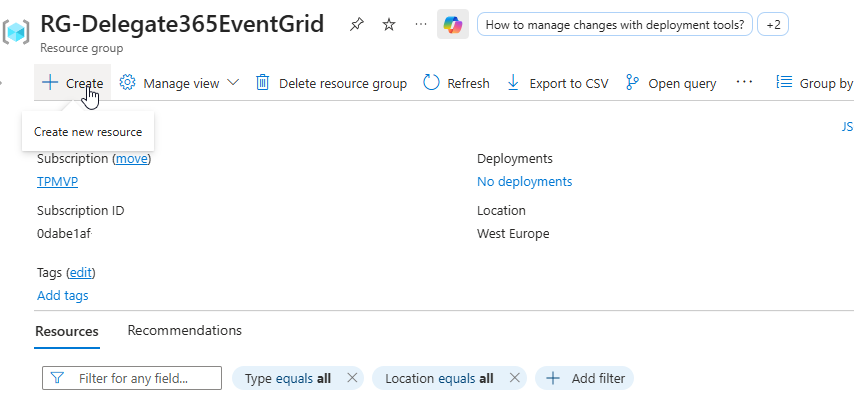
- In your Resource Group, create a new resource
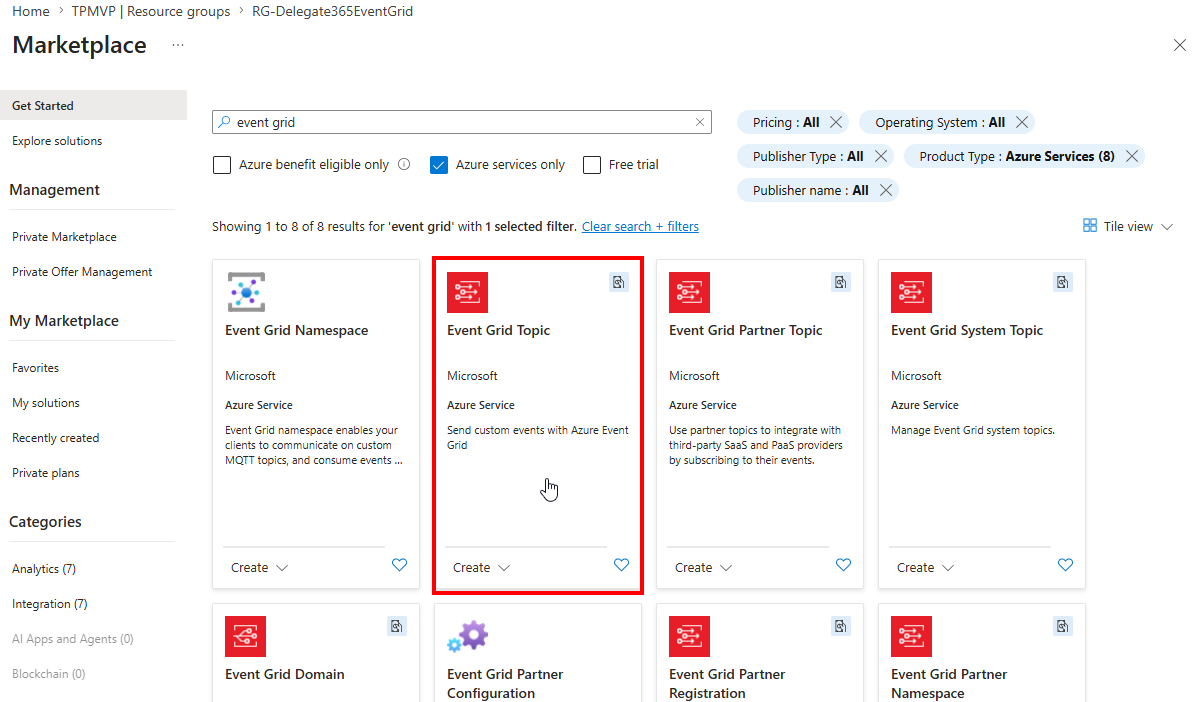
- Search for “Event Grid Topic”.
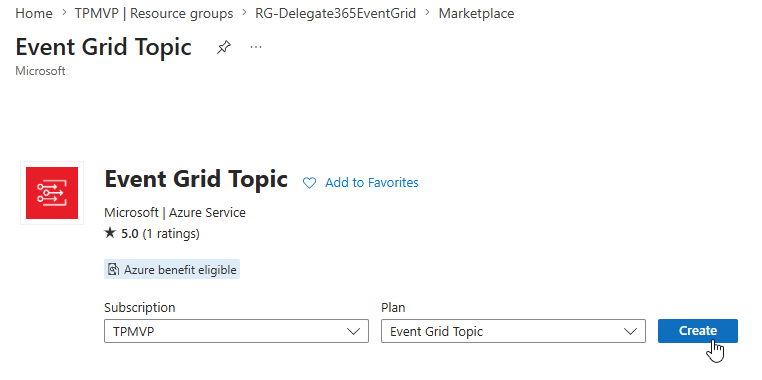
- Confirm the Event Grid Topic resource
- Review + create the Event Grid Topic resource in your Resource Group
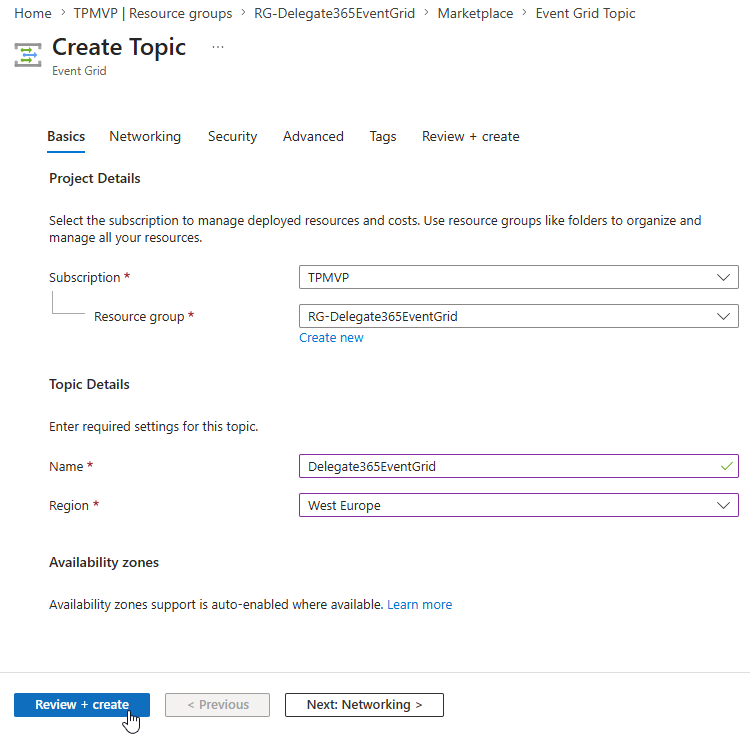
- Create the Event Grid Topic resource
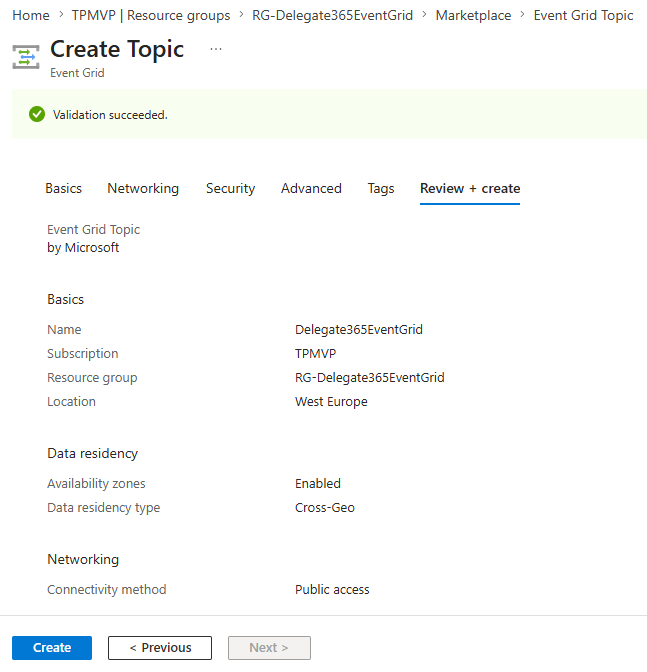





Save the Endpoint and Access Key
- After the creation process, go to the Resource Group
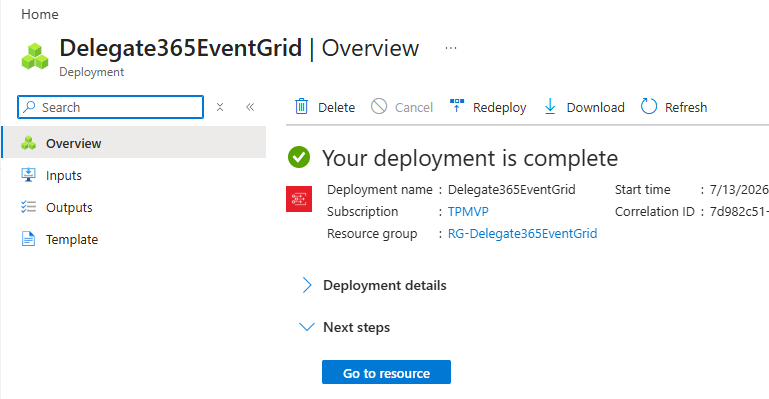
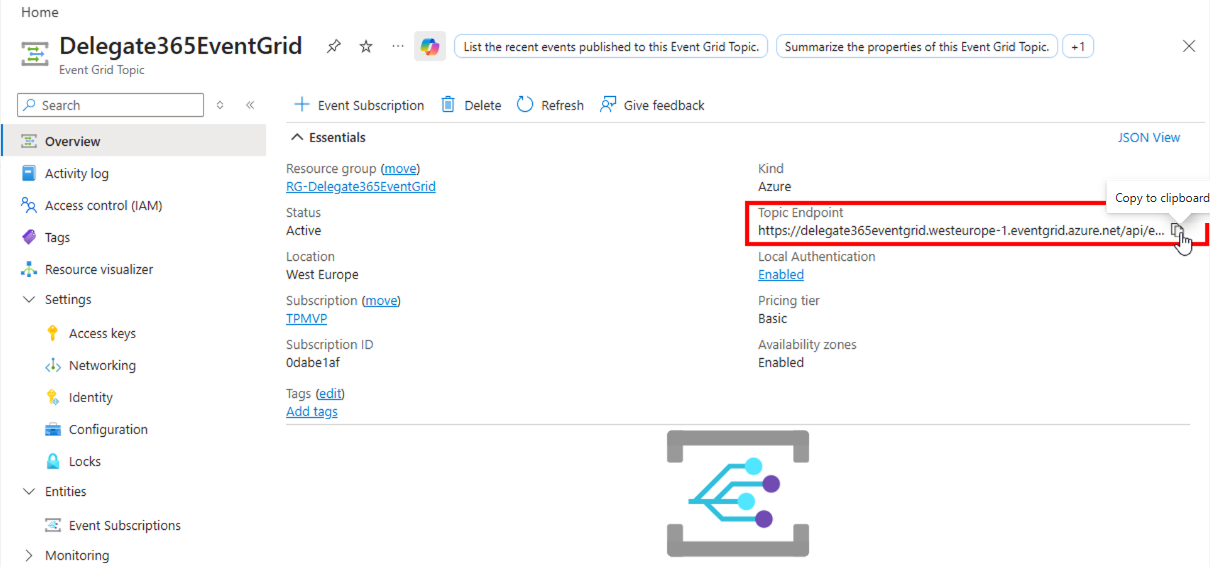
- From the Overview, copy and save the Topic Endpoint address
- Copy and save the Access Key (Key 1) to a safe environment
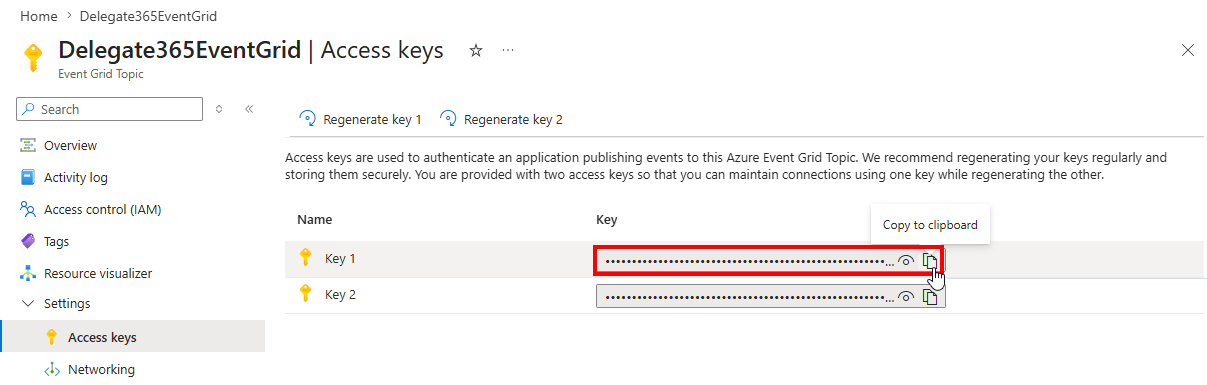
- We can use the access data to send data to the event grid resource then.



For Testing: Create a Storage Account and a Queue
Event Grid is a routing service, not a storage service. To test the event grid subscription, create a new storage account and a queue as here.
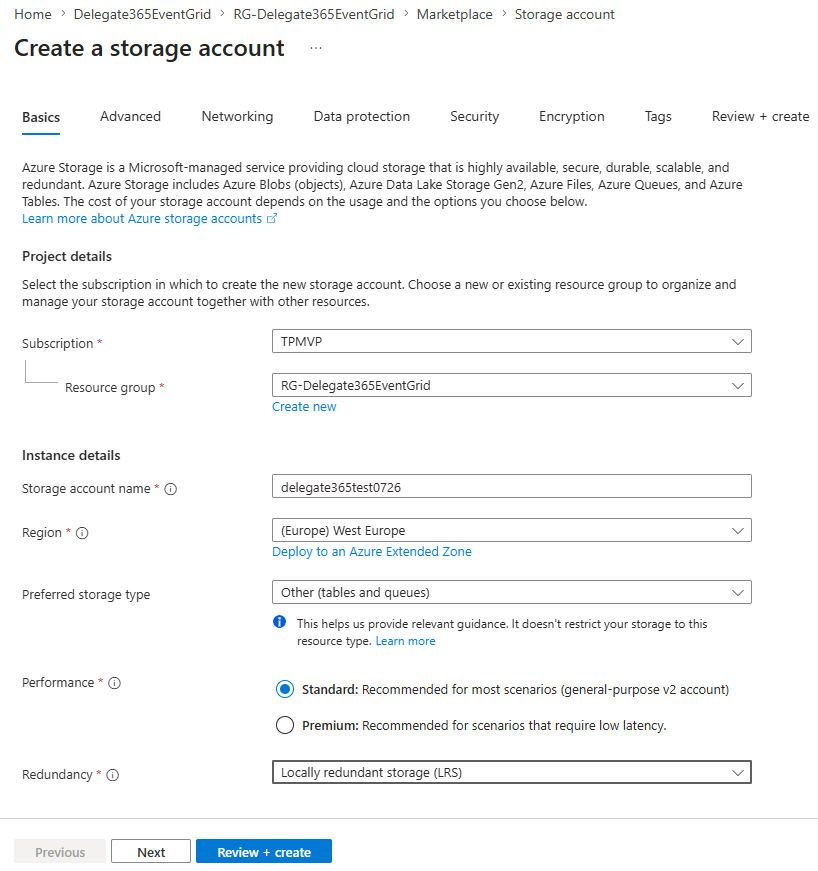
- In the Resource Group, create a new resource. Select Storage Account
- Configure the Storage Account as here, using storage type Other (tables and queues)
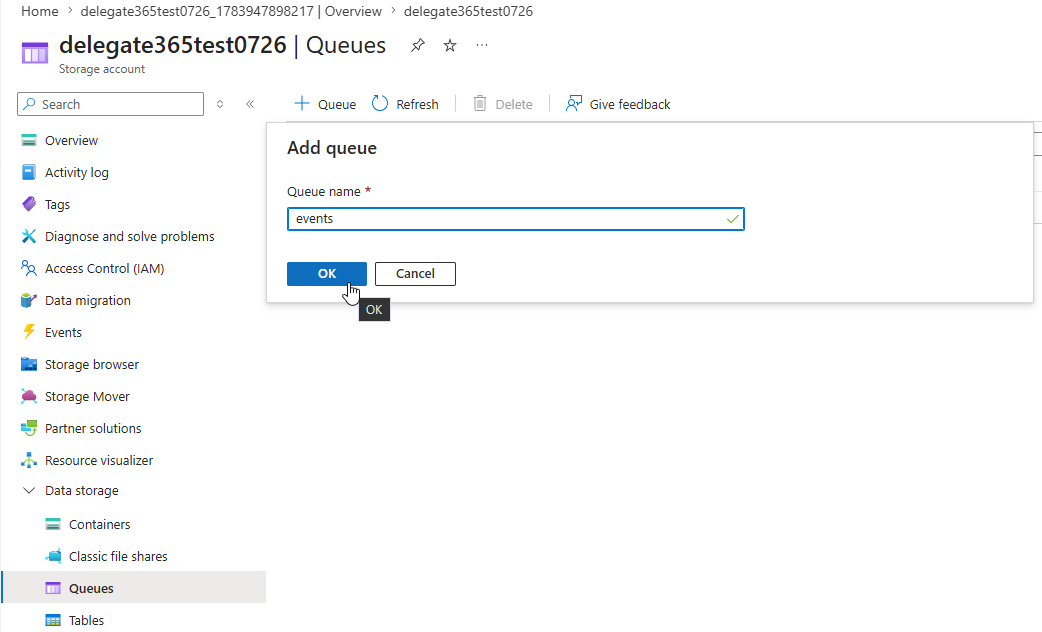
- In the storage, navigate to Data storage / Queues
- Create a new queue named events
- The queue events is now existing and ready to use


Configure a Subscription
Now create the event grid subscription to test the system.
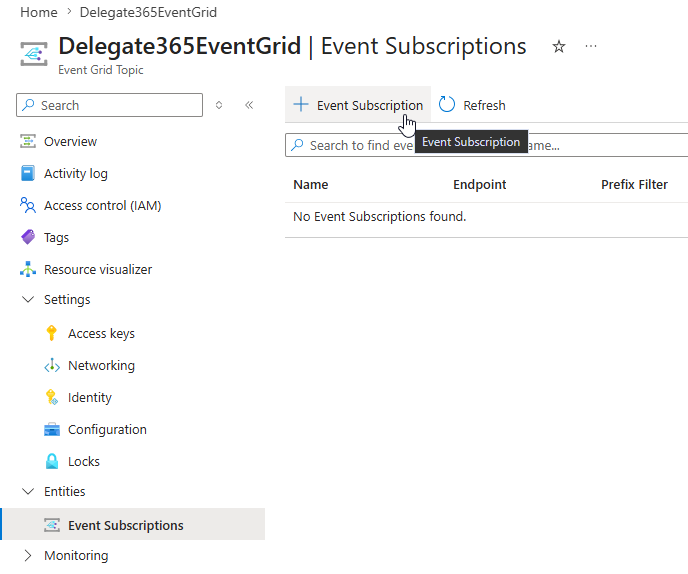
- In the event grid resource, in Entities / Event Subscriptions, create a new Event Subscription
- Add a Name, the Event Schema (Event Grid Schema) and select the Endpoint Details, depending on your requirements. To test the event grid, use the Storage Account, and the created Storage Queue
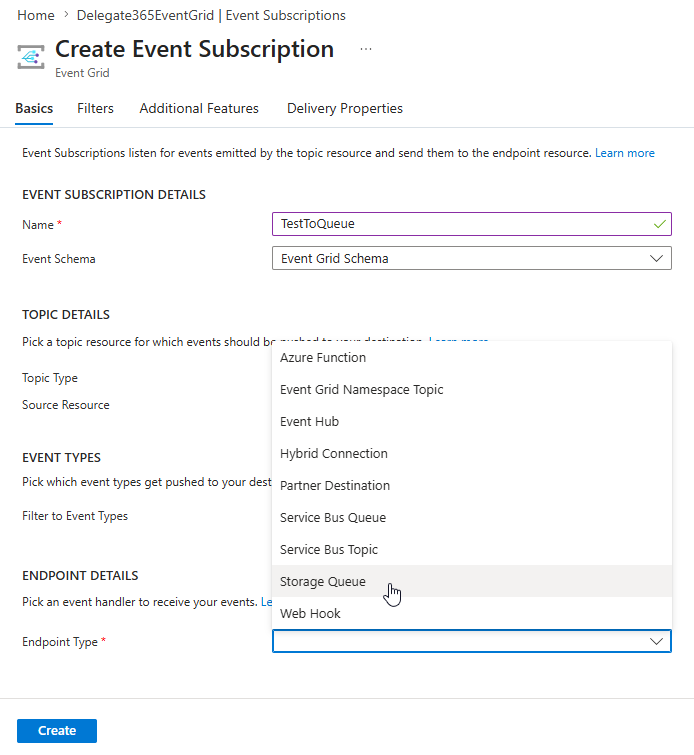
- Click on Endpoint, and select the storage account and the queue events
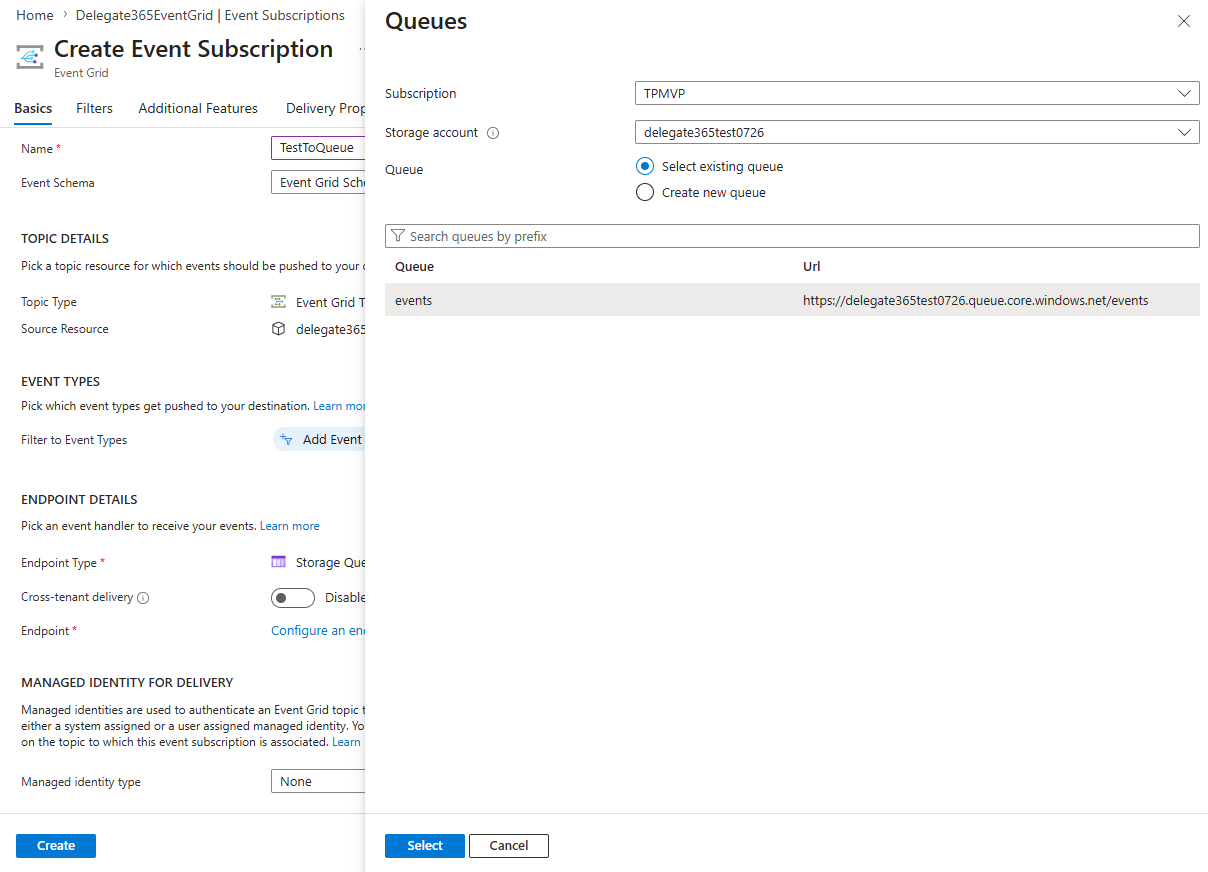
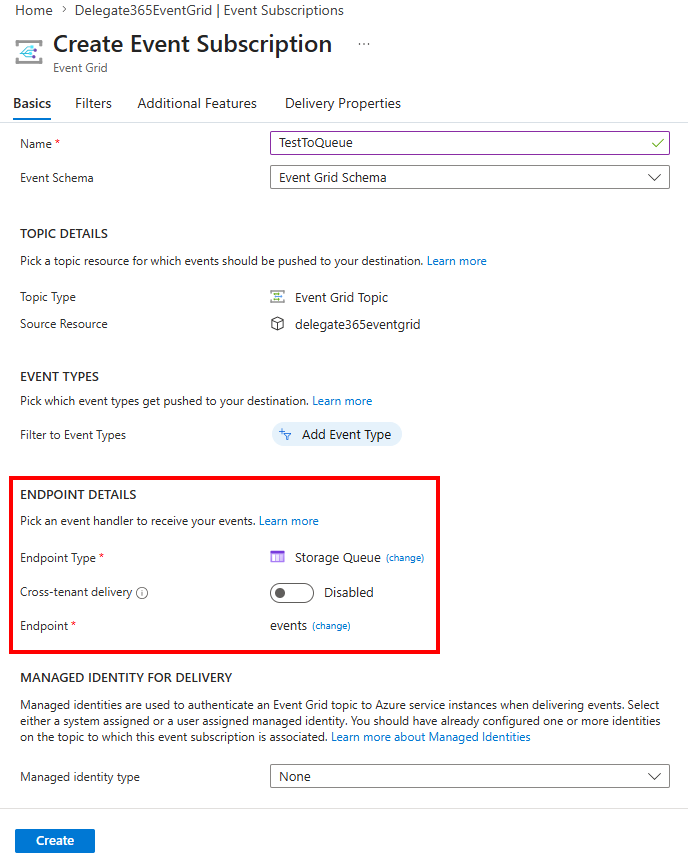
- The subscription should look as here. Click Create.
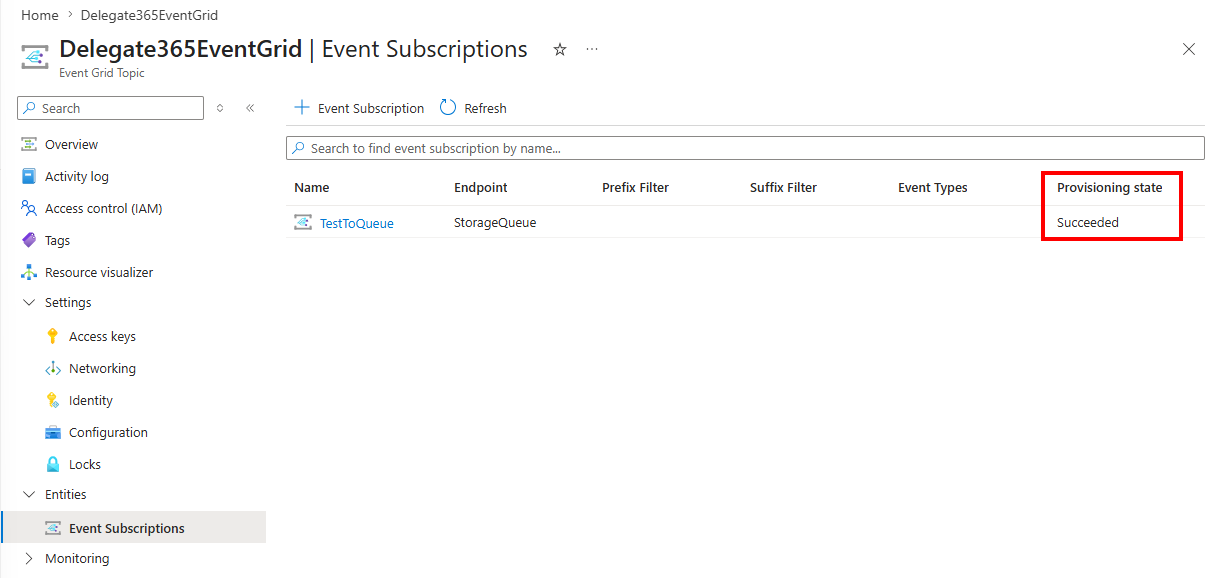
- The Provisioning state shows Succeeded
- The queue is ready to receive messages





Configure Delegate365
To configure Delegate365 to send log entries, follow these steps.
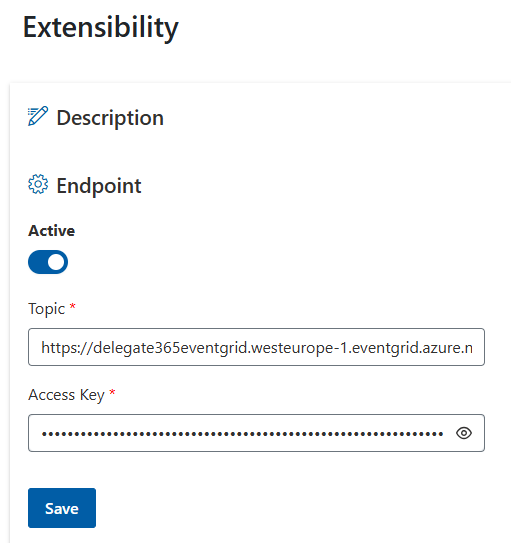
- In Delegate365, navigate to Administration / Exntensibility
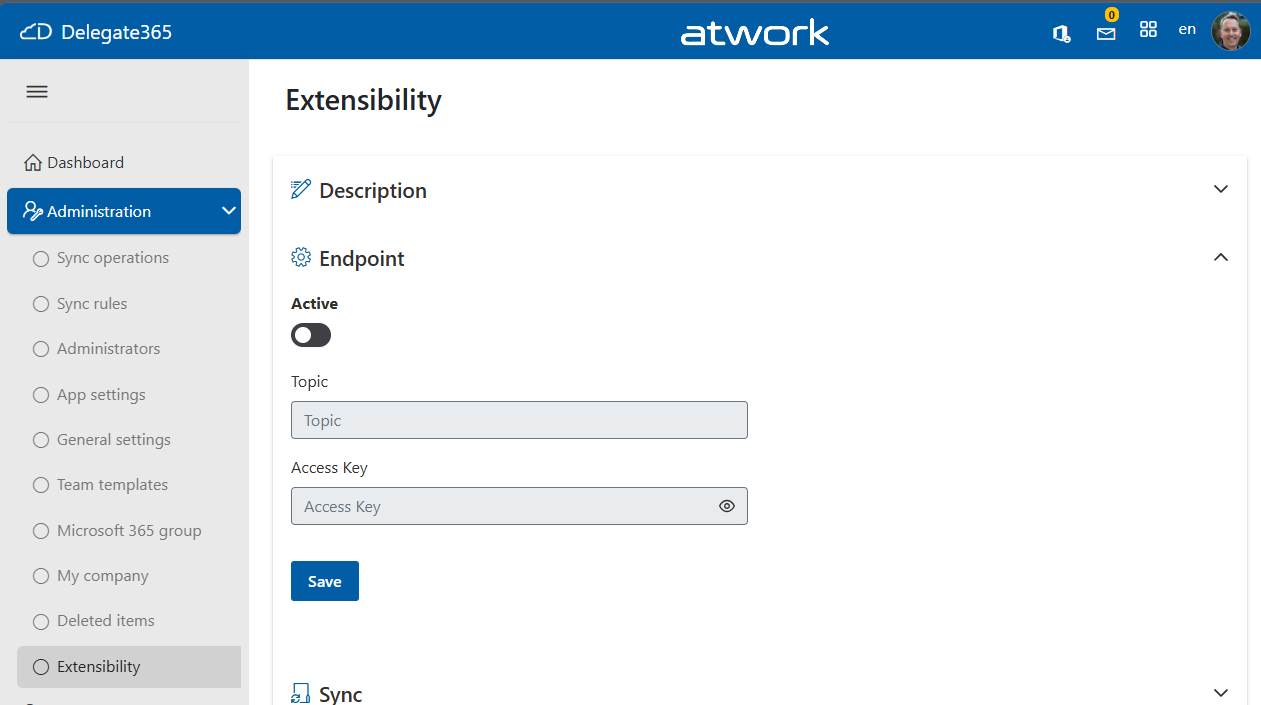
- Enable the Active switch. Paste the endpoint address and the endpoint key into the Topic and Access Key fields. Click Save
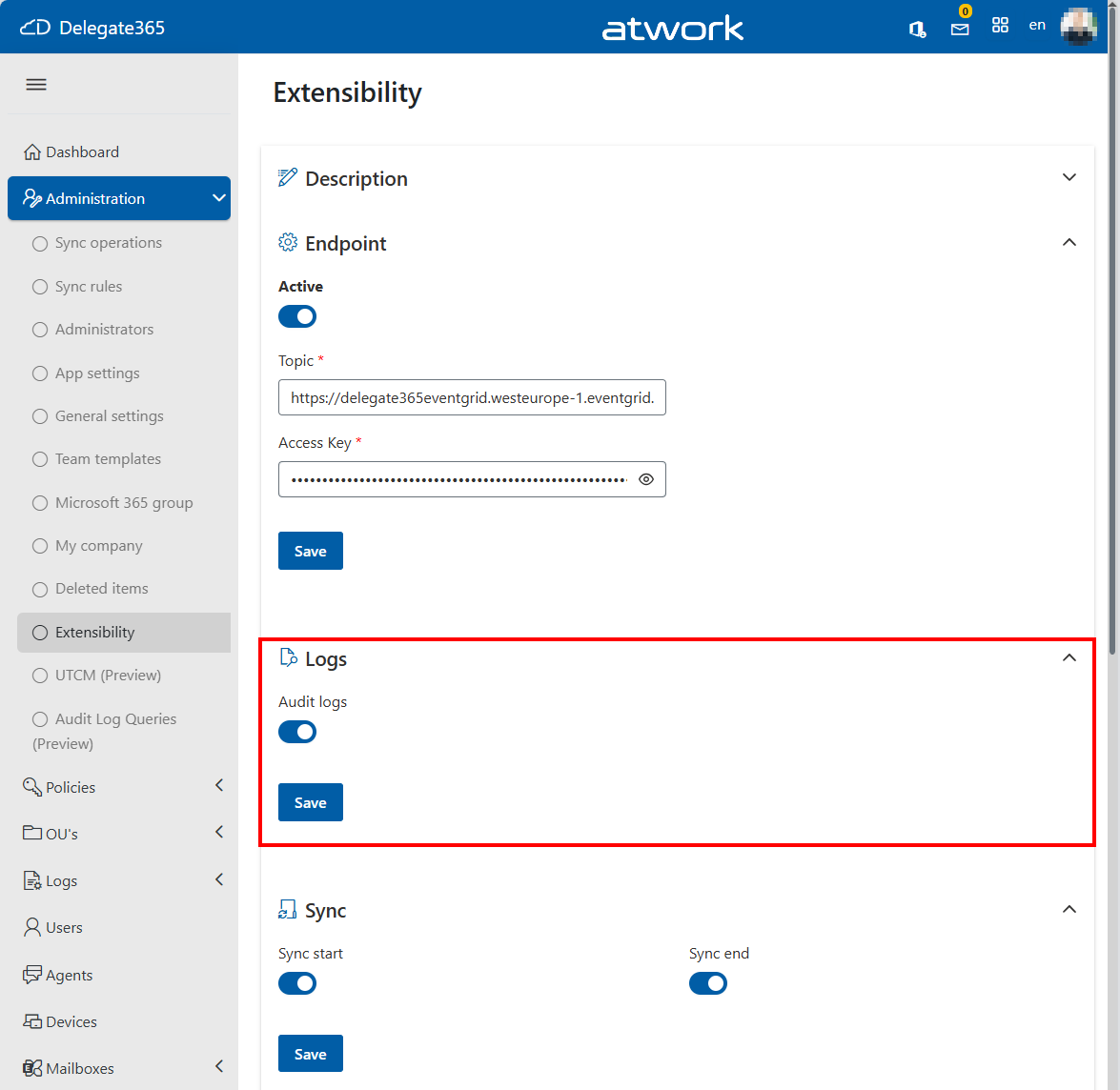
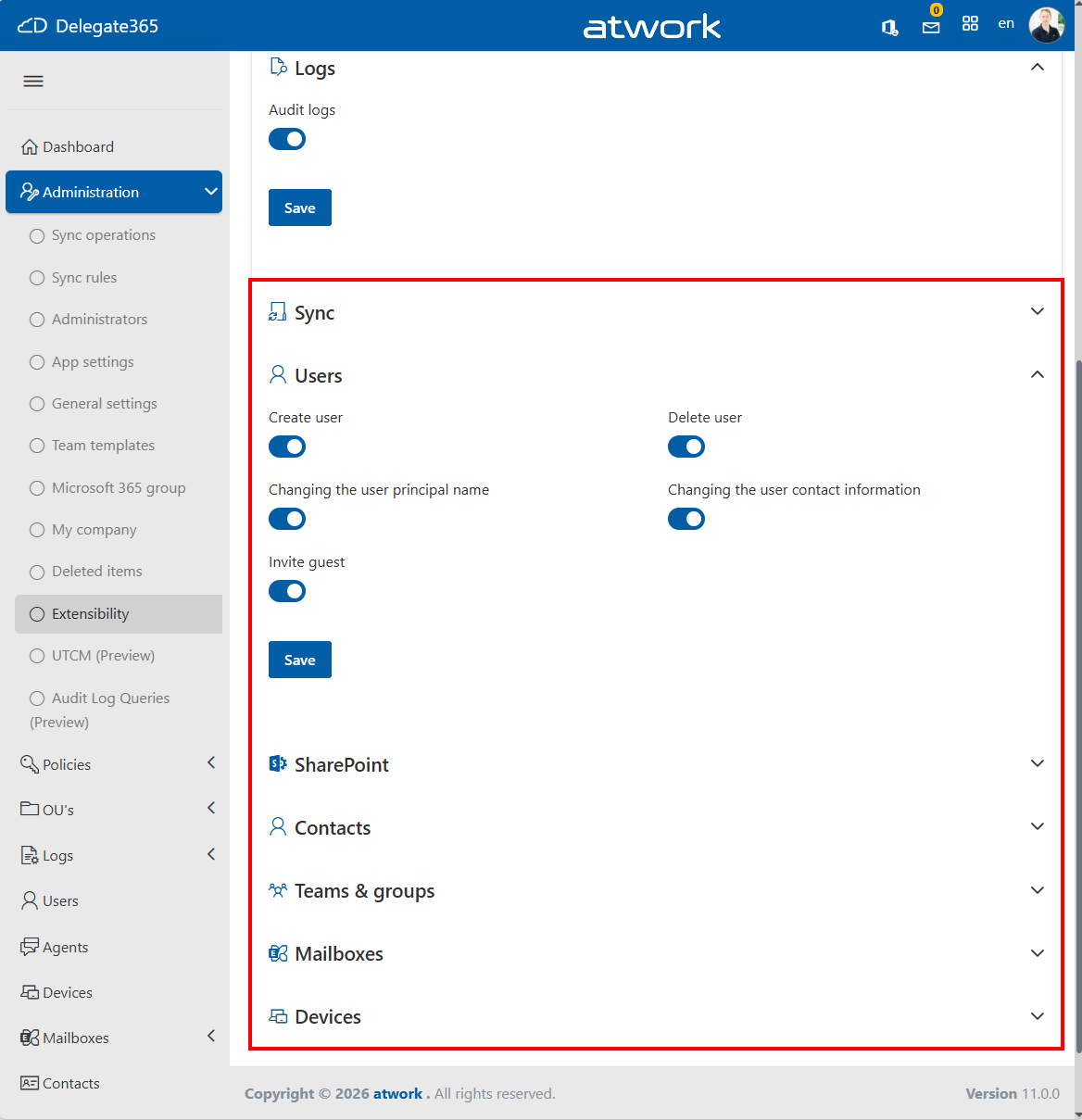
- Now configure what type of events you want to send to the event grid system. Below the Endpoint section, open the following sections: Logs, Sync, Users, SharePoint, Contacts, Teams & Groups, Mailboxes, Devices
- To send ALL operations from Delegate365 to the event grid, set Audit logs to Yes and click Save
- OR: To send only specific operations from Delegate365 to the event grid, set the corresponding switch in the sections below to Yes and click Save
- From now on, Delegate365 sends logging messages to the event grid. I it can take a couple of minutes until messages show up in the event grid system and are processed. From there, messages can be transported to other systems, as in our sample, to a queue.




Test the system
To test, do some actions in Delegate365, for example modify users, change contact information, delete a mailbox, or perform similar operations.
- After some minutes, check the event grid overview
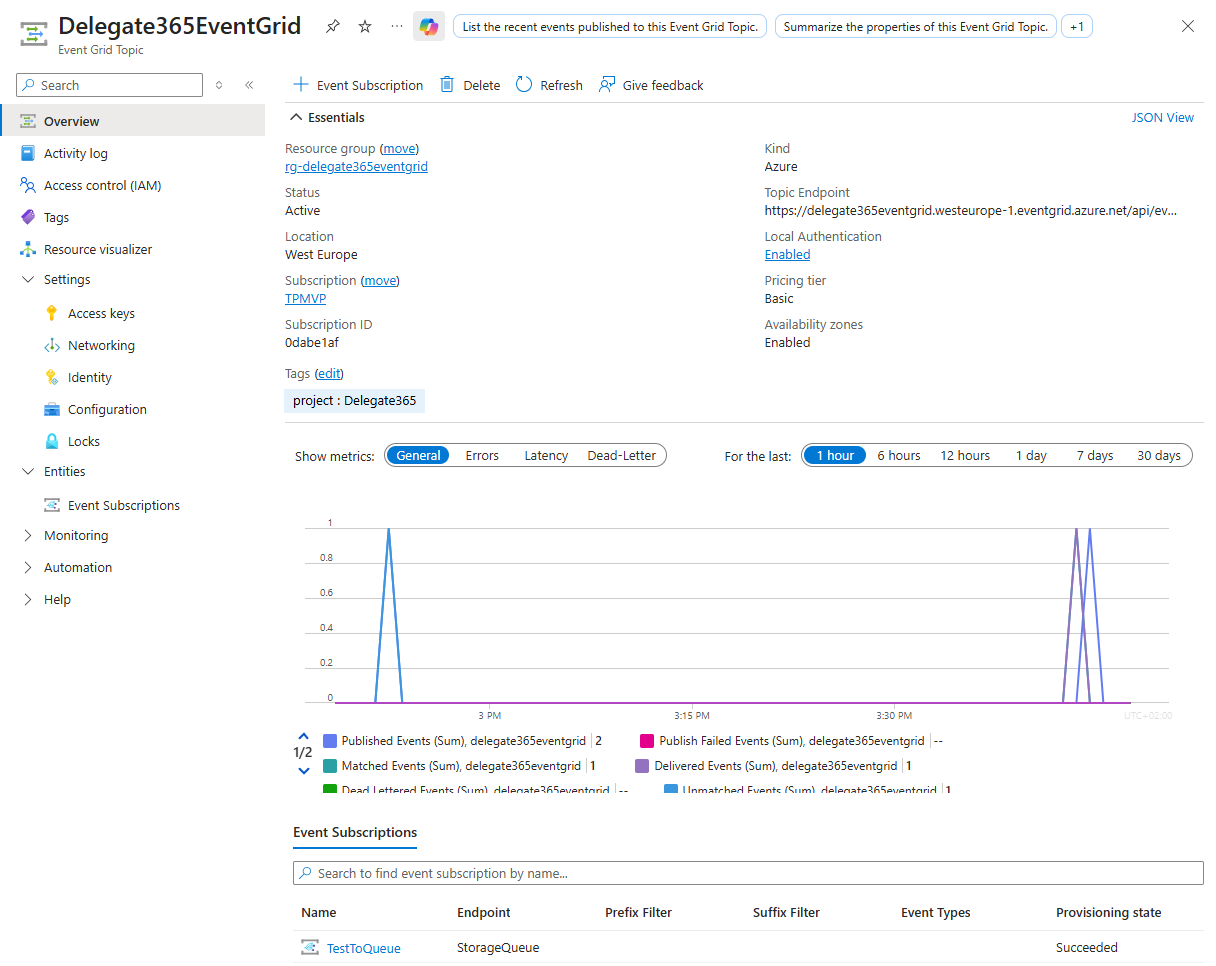
- In the queue, events will show up
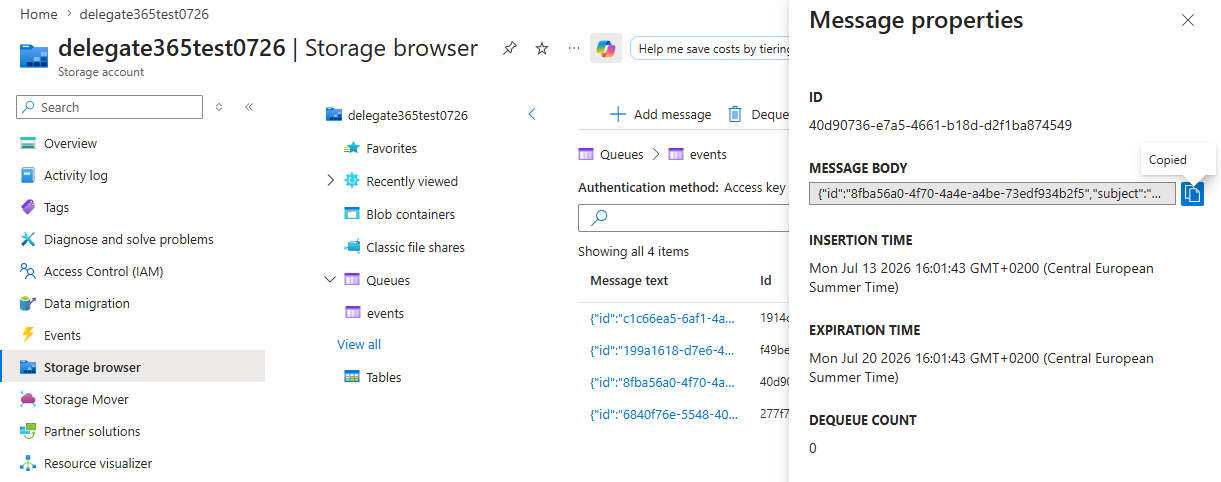
- The message depends on the operation. Property subject is the resource, eventType is the action with eventTime (UTC), and data includes the data. Here´s a sample message:


{
    "id": "8fba56a0-4f70-4a4e-a4be-73edf934b2f5",
    "subject": "John26@myorg.onmicrosoft.com",
    "data": "{\"Id\":\"404d1a86-bf7b-44a5-9125-1c6cdd958581\",\"Address\":\"John26@myorg.onmicrosoft.com\",\"OrganizationalUnit\":\"New York\",\"OrganizationalUnitId\":5,\"Administrator\":\"admin1@myorg.com\"}",
    "eventType": "UserContactInfoChanged",
    "dataVersion": "1.0",
    "metadataVersion": "1",
    "eventTime": "2026-07-13T14:01:42.6909034Z",
    "topic": "/subscriptions/0dabe1af-1234-5678-8295-1bcca9b1bc94/resourceGroups/RG-Delegate365EventGrid/providers/Microsoft.EventGrid/topics/Delegate365EventGrid"
}
- You can use the Audit Log module as a testing environment for working with KQL queries and exploring the collected audit data.
Summary
You have now successfully configured Azure Event Grid and connected Delegate365 as an event publisher. Delegate365 can send audit and operational events in near real-time, allowing you to build powerful integrations and automation scenarios across your Azure and Microsoft 365 environments.
While this article uses an Azure Storage Queue for testing purposes, Azure Event Grid supports many other destinations, such as other Azure services, or partner solutions. This flexibility enables organizations to integrate Delegate365 activities into monitoring systems, compliance processes, reporting platforms, and custom business applications.
By leveraging Event Grid together with Delegate365, you can move beyond traditional logging and create modern, event-driven solutions that react automatically to administrative actions and changes across your Microsoft 365 environment.