Microsoft 365 Virtual Marathon and Microsoft 365 for crisis communication resources

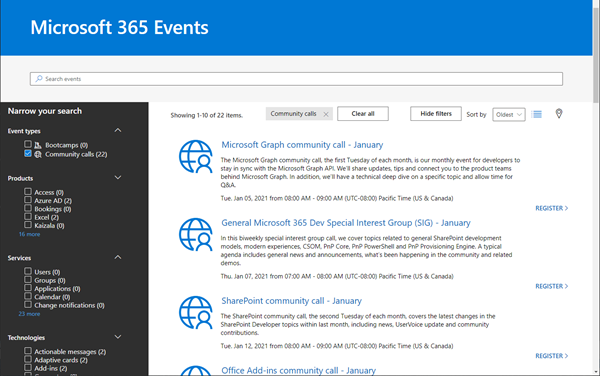
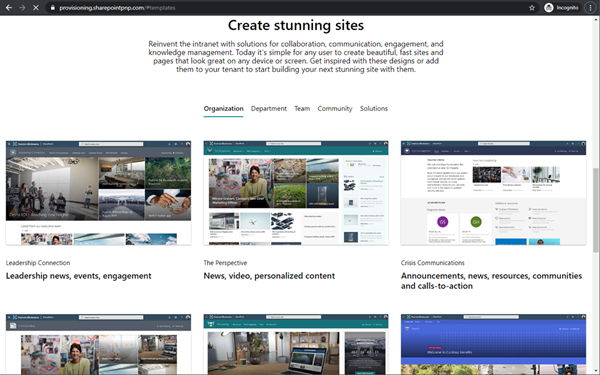
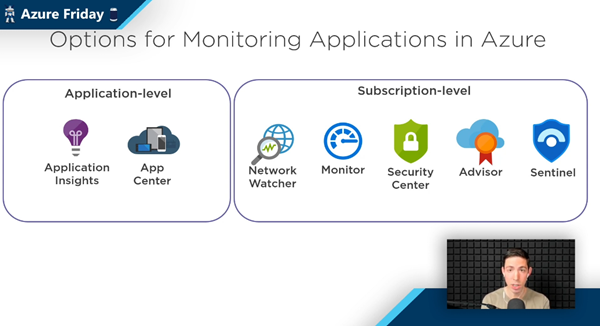
Microsoft 356 helps you communicate from anywhere. Today, the Microsoft 365 Virtual Marathon online event starts and I show different services like the quick to use crisis communication SharePoint site the Microsoft Health Care Bot service and more. Check out the Microsoft 365 Virtual Marathon and see how to start with these two services here. Microsoft 365 Virtual Marathon You can still join the free 36-hour Microsoft 365 Virtual Marathon online event and attend hundreds of interesting sessions, see the schedule. We from atwork will present the following sessions: ...

May 27, 2020 · 2 min · Martina Grom

Get the daily Bing picture as background in your Teams meetings automatically

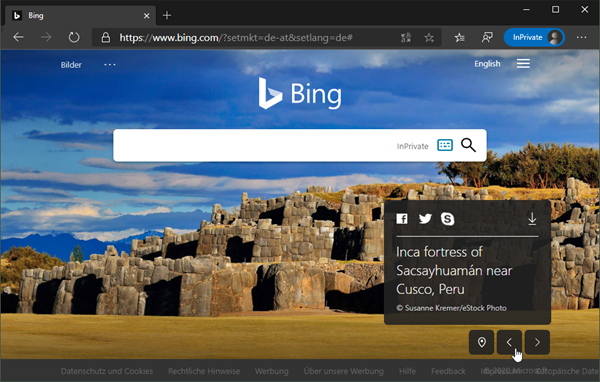
The Microsoft Bing Search Engine provides a professional and beautiful picture every day, you can see it online at www.bing.com. With the Bing API, you can easily get the images for your own use, e.g. to use them as custom background image in your Microsoft Teams calls. See how this works and download the ready-to-use PowerShell script here. So, the task is to get the daily image information, to download the picture and to provide it as background picture in Teams. ...

May 7, 2020 · 5 min · Martina Grom
Get more OneDrive for Business storage

Get more OneDrive for Business storage

Today´s another quick tip for Microsoft 365 users: If you are using OneDrive for Business (OFB) and encounter the default 1 TB storage limitations, there is a way to get more storage space. To do so, see the article by John Patrick White at Increase your OneDrive Storage Limit beyond 5 TB and Joel Olson´s blog post at Three tiers to increase to unlimited storage in OneDrive for Business. It is not very well known that the storage quota can be controlled and extended. Thank you guys, this is valuable for many Office 365 users with a lot of files! ...

April 1, 2020 · 1 min · Martina Grom

CU at SharePoint Conference 2020 in May!

We are looking forward to this year´s SharePoint Conference (SPC) in Las Vegas in May! Sharepoint Conference 2020 offers over 200 sessions, panels and workshops covering all topics around SharePoint, Teams, and the Power Platform. This is an event for everyone working in the Microsoft 365 workspace. We from atwork look forward to being there again. Plus, get a discount for SPC 2020 here! There will be an amazing line-up with more than 150 top-speakers delivering lots of news and insights into the SharePoint ecosystem. In addition to Microsoft speakers, there are also a lot of speakers from the community. We from atwork are honored to speak there with colleagues like Andrew Connell, Laura Rogers, Tony Redmond, Benjamin Niaulin, Daniel Glenn, David Warner, Dux Raymond Sy, Heather Newman, Laura Kokkarinen, and many more! ...

March 3, 2020 · 1 min · Martina Grom
Try the VSCode Docs Authoring Pack extension

Try the VSCode Docs Authoring Pack extension

Today´s a very quick tip: If your are writing documentation in MarkDown with Visual Studio Code, try out the Docs Authoring Pack extension! Install the Docs Authoring Pack extension for VSCode. Once installed, you can use the shortcut ALT + M to access the MarkDown commands, such as the Preview function or to insert formatting. Happy documenting with the Docs Authoring Pack extension for VSCode.

February 28, 2020 · 1 min · Martina Grom
Delegate365-Read audit logs

Delegate365-Read audit logs

Whenever a user or the synchronization makes a change in Delegate365, this is logged. Logging is a collection of changed properties of an object. Since many different things can happen, logging depends on the action. See more here. Delegate365 protocols the changed object properties or assignments to an object. Through the service-oriented architecture, it can take up to 5 minutes till actions are visible in the audit logs. Logs are available for users who have permission to the corresponding Logs modules. For scope admins, usually the Quick Audit OU´s menu is available to see changes of their own objects as follows. ...

February 21, 2020 · 4 min · Martina Grom
Delegate365 - Methods of getting license statistics

Delegate365 - Methods of getting license statistics

There are several ways to get the number of assigned Microsoft 365 licenses in Delegate365, depending on the administrator´s permissions policy and the OU assignments. See all methods listed here. Licenses / License report: This module shows den current status of licenses per OU as shown here. First, the Delegate365 licenses are shown. Below, every OU is listed in a box with it´s numbers per object type (such as Users, Groups, Shared Mailboxes, etc.) and the numbers of Microsoft 365 licenses that are assigned to users in that OU. If there are license quotas set, the quota is shown as well. This module is aimed at administrators, the Delegate365 licenses and number of managed objects are shown as well. Licenses / License statistics: This module is aimed for Scope Admins and shows the numbers of used Microsoft 365 licenses as follows. Licenses / License aggregation: For customers, it is often important to know later, on which day in which unit how many licenses are assigned. To enabled such a reporting, Delegate365 stores the assigned Microsoft 365 licenses on a daily basis. In the License aggregation module, administrators can filter for their OU´s and a date range. In the result list, all assigned Microsoft 365 licenses are shown for the OU and per day. This list can be easily exported using the CSV and Excel symbols in the top right of the list as shown in the screenshot below. This list shows a very detailed historical use of the licenses and quotas. Note: In this chronicle you can go back to the beginning where you started working with Delegate365, not only 30 or 90 days as Microsoft 365 stores data! Reports / Delegate365: The report License statistics in the Delegate365 section at the end of the report´s list shows the numbers of assigned Microsoft 365 licenses as well. License statistics: This reports is an exported list including the current numbers of assigned licenses and quotas per OU as shown in the Excel export here. Note: If you are interested, what objects are assigned to an OU, check out the OU overview report. This export includes all objects in a line per OU: users, groups, etc. The report Active user detail in the Office 365 section shows assigned licenses per service for a simple analysis: Note: To see a list of available reports with samples, see Delegate365 on GitHub Reports / Delegate365 / notifications: Note that every admin can choose when to receive a report in the Schedule dropdown. Available options are* Run now, Run weekly (each Monday) *and Run monthly (each 1st). This allows to automate the report generation on a individual user basis. Note: The Portal admins controls how the notification is sent to the users: Send notification with link to the Delegate365 reports page, Send notification with the report as attachment, and Send a notification with a direct download link to the report, which is valid for 24 hours. Our recommend method is to use the last option with the 24-hours link. See more at Delegate365 changelog version 8.4 - New Report notification settings. User properties / Notifications: Another option is to set the Daily Notifications to Yes in the user properties. Click on your user name in the top right corner and select Properties. Turn on the daily notifications and enter the email address to send the report to (usually that would be your work account address you use to manage Delegate365). Then, click Save. The daily notification function generates a report every night that is sent to the provided mailbox. The admin gets an overview of the assigned users of his assigned OU´s. The email is sent with the subject “D365 daily notification” and looks similar as here. This notification includes a section for every OU showing the current numbers of assigned Microsoft 365 licenses and managed objects on a daily basis automatically. Every admin can select this option if needed. So, Delegate365 provides several methods to get and to export license statistics, even historical data. ...

February 1, 2020 · 4 min · Martina Grom

Quote of the day

There is a great quote that is almost 60 years old, but unfortunately especially true today: “Too often we hold fast to the clichés of our forebears. We subject all facts to a prefabricated set of interpretations. We enjoy the comfort of opinion without the discomfort of thought.” John F. Kennedy, Commencement Address at Yale University, June 11 1962. Source: www.goodreads.com.

January 27, 2020 · 1 min · Martina Grom

Bye bye, Skype for Business Online

Last summer, the Microsoft Teams team announced that Microsoft Teams will be the primary client for Intelligent Communications in Office 365, replacing Skype for Business Online over time. Well, time is running and Skype for Business Online will be completely discontinued in July 2021. See more here. Here´s a summary of the most relevant information about the SFB retirement, upgrade options and the successor, Microsoft Teams: Skype for Business Online will retire on July 31, 2021. After that time, the service will no longer be accessible. ...

January 17, 2020 · 1 min · Martina Grom
Microsoft Planner management 101

Microsoft Planner management 101

Microsoft plans live in Office 365 Groups. Here you can find a basic 101 about working with plans as a user and managing plans as an administrator. We look at the use, the administration, the permissions and the lifecycle of plans and the background here. During the evolution of Microsoft 365, services have been added and extended. When Microsoft Planner is included in your Office 365 subscription, it’s automatically turned on for everyone in your organization. To clarify the current status when working with Microsoft Planner, briefly read the main functions here. We assume, Planner is enabled in the organization and the users have a Planner license, see more about that administrative topic at the end. We start with the perspective of the user. ...

January 1, 2020 · 11 min · Martina Grom