Tips for PowerApps-Using SharePoint Customize forms with Bing Maps visualization

Tips for PowerApps-Using SharePoint Customize forms with Bing Maps visualization

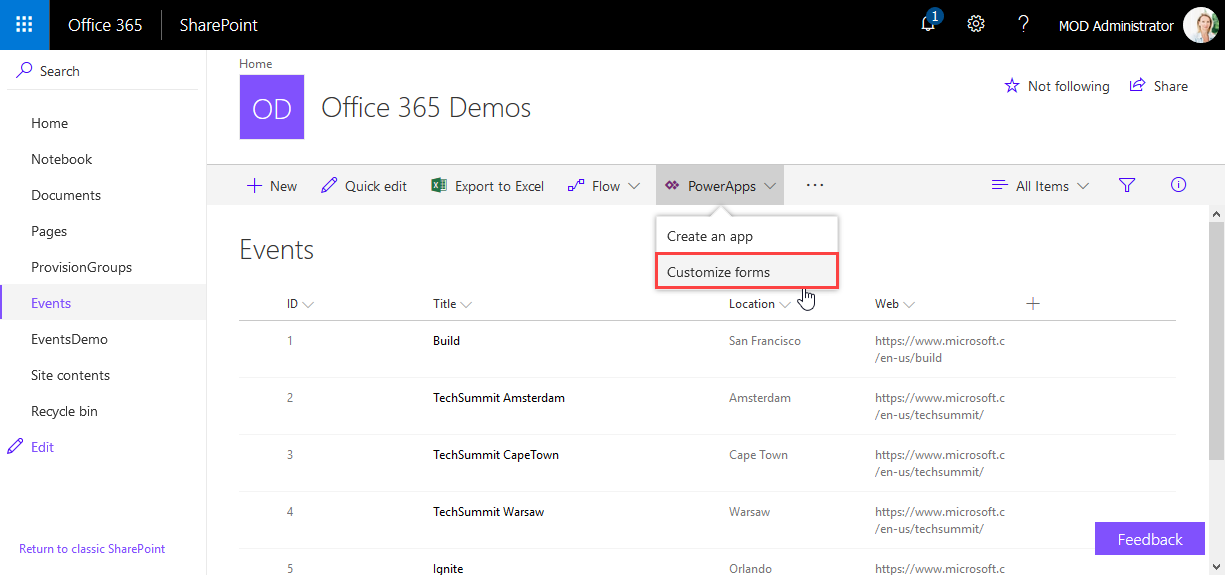
PowerApps are very powerful and simple to use.Through the integration in SharePoint Online lists, we now can create our custom forms within a SharePoint site and add additional features as calculations, modifications and even visualizations. See here, how to integrate a map for showing a location instantly directly in SharePoint without any coding! In this sample, I created a custom list and added a column Location as a single text field. In the PowerApps menu, we see the (new) Customize forms option. As the name says, this allows to modify the display and edit form of that particular list with the PowerApps Online Studio. ...

February 19, 2018 · 3 min · Toni Pohl
Delegate365 changelog version 7.4-additional reports with risk events and Microsoft Teams, OneDrive shared with and groups as members

Delegate365 changelog version 7.4-additional reports with risk events and Microsoft Teams, OneDrive shared with and groups as members

With Delegate365 version 7.3 a new reporting engine was introduced. With this update, additional reports are available in Delegate365 version 7.4. The new reports deliver a new report category with risk events, as for example impossible travel risk events or suspicious IP risk events, new Microsoft Teams statistics reports and more. Also, OneDrive usage per user and Shared-With information is now available as a report. Mail Enabled Security Groups can now be assigned with permissions in Resources (rooms and equipment mailboxes) and Shared Mailboxes. See the details and descriptions of all reports here. ...

February 15, 2018 · 7 min · Toni Pohl
Delegate365 changelog version 7.3-new reports

Delegate365 changelog version 7.3-new reports

The newest version 7.3 of Delegate365 provides a complete new reports module that replaces the old reports section. See the benefits and the details of the new Delegate365 reporting engine and how to use it for all your Delegate365 admins with just their entitled data. Learn about the details here. New reports menu: The old reports menu was replaced by the new module. Now, there are four boxes with a description, the available reports, scheduled reports and finished reports. All Delegate365 Admins can now select from new reports (1 and 2), activate a notification when finished (3) and start a report job with the Submit button (4). This creates a task in the schedules reports list (5). A job picks that task and executes it after a couple of minutes. When the report has been created, a notification can be sent to the report owner and the report shows up in the finished reports list (6). Refresh updates the reports boxes (5 and 6) with the current status if needed. ...

February 12, 2018 · 6 min · Toni Pohl
Working with Exchange Mailboxes and Groups as members

Working with Exchange Mailboxes and Groups as members

When working with Office 365 and Exchange services, it can be helpful to work with groups instead of users, for example, for allowing a group to have full access to a shared mailbox. In this case, there are some things to consider. See the working result in this documentation. The scenario First of all, I need to clarify, I’m not an Exchange guy. So, perhaps I’m describing a scenario that’s fully clear for Exchange Admins but I think, this could be helpful for other Office 365 Admins. This sample is my summary to show the solution for that specific request: How to set full access permissions to a shared mailbox, a resource or a distribution list for a group (and therefore to all members of that group). ...

February 2, 2018 · 3 min · Toni Pohl
Delegate365 changelog version 7.2-additional sync rules and more

Delegate365 changelog version 7.2-additional sync rules and more

With Delegate version 7.2 there come some new and useful features especially in the sync rules. See the details described here. Sync Rules: Groups OU-assignment by new name rules: All group rules now offer additional options in the Property dropdown allowing to assign a group to an OU by its name. To get the OU name out of the group name, the OU name must be the prefix of a name and a predefined separator must be used. The options include the following separators: [space] , [underscore] , [hyphen] –, [point] ., and [slash] /. To clarify the mechanism, the options show a sample. So, if a group Display Name is set to “New York_Group”, the sync rule strips down by the separator “” and uses “New York” as OU name and “Group” as group name. So, group “Group” is automatically assigned to OU “New York”. Take care when using a normal space character as separator: Then, the OU name can only be one word, for example: “New York Group” would result in an OU “New” and the group name is “York Group”. As workaround, the OU-name could be named with a hyphen “New-York” or similar. That’s the purpose, to use a Display Name for automatic OU-assignment instead of object properties. Now, admins can use this feature additionally if needed for the following objects: Distribution Groups, Office 365 Groups, Contacts, Resources, Shared Mailboxes and Security Groups as marked red in the following screenshot. ...

January 31, 2018 · 6 min · Toni Pohl
How to restrict access and to connect to a single SQL Azure database only

How to restrict access and to connect to a single SQL Azure database only

As of today, many organizations use various Microsoft Azure services. SQL Azure databases are popular among them. Often, IT Administrators want to allow departments or vendors full access to just one specific SQL Azure database and to restrict their access to other resources. See here how this works. Use SQL Management Studio or SQL Operations Studio When working with SQL databases, installing the SQL Management Studio (SSMS) is very helpful. You can get the latest version from Download SQL Server Management Studio (SSMS) for free. Alternatively, you can use the new lightweight and cost free SQL Operations Studio. ...

January 27, 2018 · 4 min · Toni Pohl
Snapshots of SharePoint Saturday Bremen 2018

Snapshots of SharePoint Saturday Bremen 2018

This weekend, on the January 20th, the first SPS North Germany/Bremen took place with great sessions in a very cool location. See some snapshots here. For #SPSBRE, we had a very cool location in the Bremen Harbor at Schuppen Eins (“shed one”). When entering the former harbor storehouse building that was built in 1959, the automobile Oldtimer Boulevard hits you with more than 60 unique cars, embedded in a modernized glass structure with a cafe, shops and a garage specialized in repairing old-timers. So, we had a lot to watch – and to learn. ...

January 21, 2018 · 1 min · Toni Pohl

CU at SharePoint Saturday Bremen 2018

We are looking forward to see you at the SharePoint, Office 365 and Azure community event next week on January 20, at the first SharePoint Saturday North Germany 2018, in the city of Bremen. There will be a lot of interesting sessions and a great speaker’s lineup. CU there! SharePoint Saturday North Germany / Bremen 2018 Saturday, January 20, 2018 Schuppen Eins, Konsul-Smidt-Str. 22, 28215 Bremen SPS Bremen will deliver a bunch of hot topics, see speakers and sessions! We from atwork have three sessions and will inform about these topics: ...

January 14, 2018 · 1 min · Toni Pohl

How Azure Security Center protects your data against cyber attacks

In many scenarios, public cloud services allow a high grade of elasticity, flexibility and cost effectiveness combined with standardization. On the other hand, every customer needs to build trust to the desired platform and that all his services and data are protected against any attacks. So, it’s very interesting to see, what kind of mechanisms the large cloud providers as Microsoft are using to keep data safe and how they detect attacks and what countermeasures they execute. ...

January 1, 2018 · 1 min · Toni Pohl
How to access files stored in OneDrive or in a SharePoint site with Microsoft Graph and the Excel API

How to access files stored in OneDrive or in a SharePoint site with Microsoft Graph and the Excel API

The Microsoft Graph API is the new unified endpoint for developers accessing data from an Office 365 tenant. Amongst many other features, you can work with OneDrive and SharePoint files with the Graph REST API. Additionally, you can directly work with Excel files through the Graph Excel API. Since all samples I found just use the personal OneDrive for Business (OFB) file storage, I wanted to document how to access files that are stored in a SharePoint Online site (SPO) as well. So, here we go! ...

December 29, 2017 · 6 min · Toni Pohl